How to Create a QR Code: A Complete Beginner's Guide
Learn how to create a QR code for a website, WiFi, contact, or text. Covers online generators, static vs dynamic QR codes, and size requirements for print.
- qr code
- qr code generator
- how-to
- marketing
- website
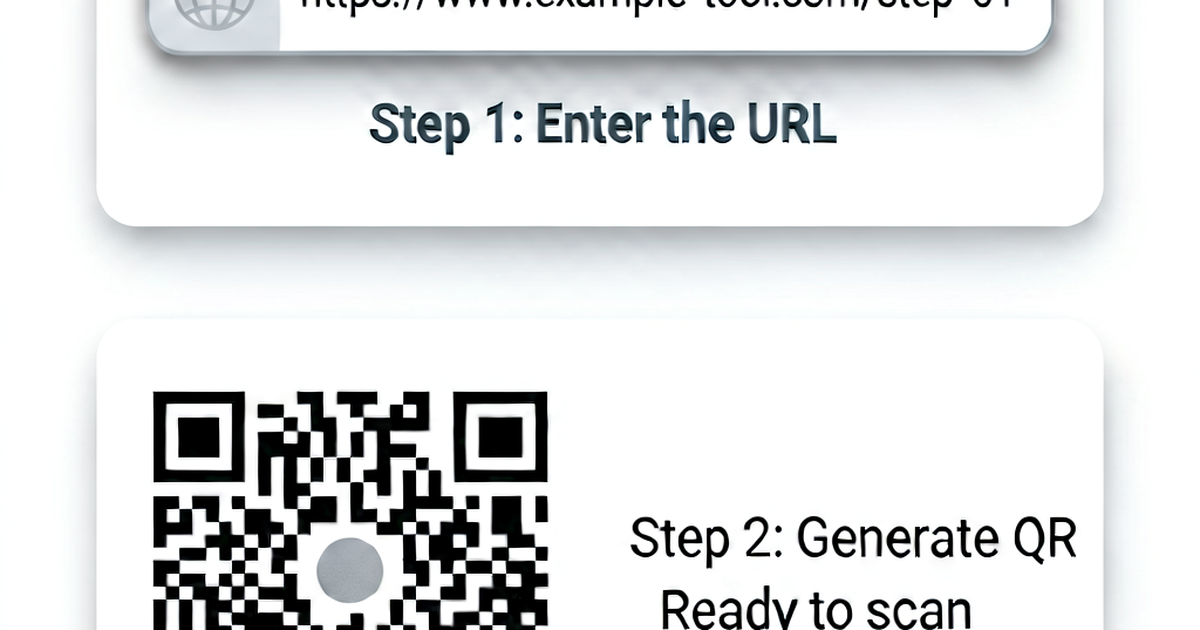
QR codes (Quick Response codes) are 2D barcodes that encode text — usually a URL — and can be scanned by any smartphone camera. Creating one takes about 30 seconds. This guide covers everything from basic generation to sizing for print.
What you need to create a QR code
You need:
- The content to encode (URL, text, WiFi credentials, contact info)
- A QR code generator (online tool or library)
No account is required for a basic static QR code.
Step 1: Choose what to encode
URL (most common):
https://example.com/landing-page?utm_source=print&utm_medium=flyerPlain text:
Welcome to our store! Ask staff for your 10% discount code.WiFi network:
WIFI:T:WPA;S:MyNetwork;P:MyPassword;;Email:
mailto:hello@example.com?subject=Hello&body=I%20found%20your%20QR%20codePhone number:
tel:+15555551234SMS:
sms:+15555551234?body=Hello%20from%20your%20QR%20codevCard contact:
BEGIN:VCARD
VERSION:3.0
FN:Jane Smith
TEL:+15555551234
EMAIL:jane@example.com
END:VCARD
Step 2: Generate the QR code
Go to qrcodegen.io, enter your content, and download the result. Choose SVG for print (scalable to any size) or PNG for digital use.
Key settings:
- Error correction level: L (7%), M (15%), Q (25%), H (30%) — higher means the code is scannable even when partially damaged
- Size: Download at the largest available size; you can always scale down
- Quiet zone: Keep at least 4 module widths of white space around the code
Step 3: Size for your use case
| Use case | Minimum size | Scan distance |
|---|---|---|
| Business card | 1 × 1 cm (0.4 in) | < 10 cm |
| Flyer / A4 paper | 2.5 × 2.5 cm (1 in) | < 25 cm |
| Poster | 5 × 5 cm (2 in) | < 50 cm |
| Storefront sign | 10 × 10 cm (4 in) | 1 m |
| Billboard | 30 × 30 cm (12 in) | 3 m |
The rule of thumb: the scan distance is roughly 10× the code’s physical size.
For print: Use SVG or PDF. Never use JPEG (compression artifacts break the code).
For digital screens: PNG at 300–500px is sufficient. Use SVG if you need to resize.
Step 4: Test before printing
Always scan the code with:
- iPhone camera app
- Android camera app
- Google Lens
Test with multiple devices in real-world lighting. If you’re printing in bulk, test a physical print before the full run.
Common mistakes
Dark background with light modules: Most scanners expect dark modules on a light background. If you invert this, add a white border around the code. Some scanners handle inverted codes; many don’t.
Insufficient quiet zone: The code must have white space on all sides. Don’t bleed design elements into the code’s border.
Too much data: More data = more modules = smaller modules = harder to scan. Keep URLs short (use a link shortener if needed). WiFi QR codes can fail on older scanners if the SSID or password is very long.
Low contrast: Black on white works best. If you use colors, ensure the dark/light contrast ratio is at least 4:1.
Wrong file format for print: JPEG compression adds artifacts that can make the code unreadable. Always use SVG or PNG for print.
Generate QR codes at qrcodegen.io.
Related reading
-
QR Code for Website: Link Any Page to a Scannable Code
Create a QR code for any website URL. Covers URL optimization, UTM tracking, landing page tips, size requirements, and how to embed QR codes in print and digital content.
-
QR Code Best Practices: Design, Size, Placement, and Testing
QR code design and usage best practices: minimum size, contrast, quiet zone, error correction, print vs digital, and how to test QR codes before publishing.
-
Dynamic QR Code vs Static QR Code: What's the Difference?
Compare dynamic and static QR codes: editability, tracking, URL redirects, and when to use each. Includes use cases for print, marketing, and permanent links.